Tech & Smart Home

  • How to Build a Kids Gaming Setup Without Spending a Fortune

    How to Build a Kids Gaming Setup Without Spending a Fortune

    Building a gaming setup for your kid can get expensive remarkably fast.

    You start with:

    “Maybe we’ll get them a little desk.”

    Twenty minutes later you’re looking at a $349 gaming chair, RGB wall panels, a mechanical keyboard that sounds like someone dumping LEGOs onto a hardwood floor and a desk large enough to conduct air traffic control.

    Stop.

    Your kid does not need a YouTube streamer’s command center to play Minecraft.

    A good kids gaming setup really needs to do a handful of things well:

    • Give them a comfortable place to play
    • Keep expensive electronics somewhat protected from the chaos of childhood
    • Keep cords and accessories under control
    • Give parents reasonable oversight
    • Leave room to upgrade later

    You can do all of that without spending a fortune.

    1. Start With What They Already Play

    Younger child gaming in chair

    Before buying anything, figure out what the setup actually needs to accomplish.

    A kid playing Nintendo Switch has very different requirements from a teenager playing PC games.

    Maybe they’re primarily using:

    • Xbox
    • PlayStation
    • Nintendo Switch
    • Gaming PC
    • Tablet
    • A combination of everything because apparently electronics reproduce when we’re asleep

    Build around the equipment they already own.

    If they’re playing console games on a perfectly good TV, you don’t automatically need a gaming monitor.

    If they’re playing Switch, you probably don’t need a six-foot gaming desk.

    And if they’re playing Roblox on a laptop, building a $1,500 battlestation around it may be getting slightly ahead of ourselves.

    Start with the device.

    Then build the space around it.

    2. Don’t Automatically Buy a “Gaming” Desk

    Putting the word gaming in front of furniture occasionally performs an impressive magic trick on the price.

    Gaming desk.

    Gaming chair.

    Gaming shelf.

    Gaming cup holder.

    Gaming oxygen, probably coming soon.

    Your kid needs a stable surface at the correct height with enough room for their equipment.

    That’s it.

    A basic desk, writing desk or inexpensive computer desk can work perfectly well.

    For console setups, you might not even need a desk. A TV stand, small entertainment center or existing bedroom furniture may already solve the problem.

    Spend money where it actually improves the experience.

    The furniture doesn’t need racing stripes.

    3. Be Even More Skeptical of the Gaming Chair

    Child playing Roblox at computer

    This might save you more money than anything else in the room.

    Your kid does not need a $400 racing-style gaming chair.

    They need a chair that’s comfortable and fits them.

    That’s an important distinction.

    Look for:

    • Adjustable height
    • Decent back support
    • Feet that can sit comfortably rather than dangle awkwardly
    • A seat depth appropriate for their size
    • Something reasonably durable

    A basic adjustable office chair can be a better choice than an inexpensive “gaming chair” designed primarily to look cool in an Amazon thumbnail.

    And if they’re still growing quickly, remember that you’re buying furniture for a moving target.

    Don’t build the cockpit of a Formula 1 car around a nine-year-old.

    4. Put the Setup Somewhere You Can Actually See It

    This matters more for younger kids than having the perfect RGB lighting.

    For younger children especially, consider putting the gaming setup in a shared or higher-traffic part of the house rather than disappearing it behind a closed bedroom door.

    The American Academy of Pediatrics specifically recommends keeping devices used for online multiplayer gaming in higher-traffic areas such as a living room, family room or kitchen so parents can stay aware of what’s happening without constantly hovering.

    That’s particularly useful once multiplayer games enter the picture.

    Because now gaming isn’t necessarily just:

    Kid + Mario.

    It can be:

    Kid + headset + internet + seventeen people named things like xXShadowPickle47Xx.

    You don’t need to stand behind them reading every chat message.

    But knowing what’s happening is useful.

    5. Cable Management Is Worth Doing Immediately

    You know what’s cheaper than replacing a controller, monitor or console?

    A $10 pack of cable ties.

    Cords multiply quickly:

    Power cable.

    HDMI cable.

    Controller charger.

    Headset cable.

    Keyboard.

    Mouse.

    LED lights.

    Phone charger.

    And somehow one mysterious cord nobody remembers buying but everyone is afraid to unplug.

    Use simple Velcro cable ties, clips or an under-desk cable tray to keep things contained.

    Also leave a little slack where kids need to move something.

    You don’t want one excited chair spin to perform an HDMI-assisted monitor launch.

    6. Give Controllers and Headsets a Home

    Kids are much better at putting things away when “away” is obvious.

    Give controllers one place to go.

    Give the headset one hook.

    Give game cartridges or discs one container.

    Give charging cables one location.

    Nothing elaborate is required.

    A cheap adhesive hook attached to the side of a desk can hold a headset.

    A little basket can hold controllers.

    A drawer organizer can handle cables and accessories.

    The goal is eliminating:

    “WHERE IS MY CONTROLLER?”

    followed by twenty minutes of searching before discovering it under a blanket approximately fourteen inches from where the child was originally sitting.

    7. Protect the Drinks From the Electronics

    Kids get thirsty.

    Gaming sessions get long.

    Drinks eventually enter the ecosystem.

    This creates a natural predator-prey relationship between cups and electronics.

    If drinks are allowed near the setup, give them somewhere sensible to go.

    A clamp-on cup holder attached to the desk can cost very little and keeps drinks away from keyboards, controllers and consoles.

    For younger kids, a bottle with a secure lid is even better.

    Because “Don’t spill that” has historically been one of the least effective technologies ever developed by parents.

    8. You Don’t Need Much RGB

    Child facing television while gaming

    I know.

    The lights are cool.

    Your kid knows.

    I know.

    The entire gaming industry definitely knows.

    But you don’t need to turn the bedroom into the bridge of an alien spacecraft.

    One inexpensive LED strip behind a desk or monitor can create most of the effect kids want.

    That’s usually enough.

    If you eventually want wall panels, monitor lights and glowing hexagons capable of communicating with passing satellites, those can become future upgrades.

    Start small.

    Lighting is also an easy birthday or Christmas upgrade later.

    Which brings us to an important rule.

    9. Don’t Build the Finished Setup on Day One

    This is where parents accidentally spend $1,000.

    You don’t need to buy:

    Desk.

    Chair.

    Monitor.

    Keyboard.

    Mouse.

    Headset.

    Speakers.

    Lights.

    Controller stand.

    Charging dock.

    Wall panels.

    Mini fridge.

    Neon gamer tag.

    Replica Master Sword.

    …all on Saturday.

    Start with the basics.

    Then let the setup grow.

    A headset can become a birthday gift.

    Lights can become a Christmas gift.

    A better keyboard can come later.

    A second monitor can wait until there’s actually a reason to have one.

    Kids also change interests quickly.

    Today’s absolute obsession may be collecting dust six months from now next to the ukulele they desperately needed last Christmas.

    Upgrade based on what they’re actually using.

    10. Set Up the Parental Controls Before You Need Them

    This isn’t the exciting part of building the setup.

    Do it anyway.

    Modern gaming parental controls can generally help parents manage things such as:

    • Game ratings
    • Screen time
    • Online communication
    • Friend interactions
    • Purchases
    • Privacy

    The ESRB’s Family Gaming Guide has guidance for setting boundaries around games, multiplayer, screen time, spending and online communication.

    And don’t forget that controls may exist in more than one place.

    The ESRB notes that parental controls generally need to be configured separately for the devices your child uses, and some individual games have their own additional controls.

    That matters.

    Setting restrictions on the Xbox doesn’t necessarily mean you’ve configured everything inside every game your kid plays.

    Also, please put a password or PIN on purchases.

    Unless you enjoy discovering that your child has converted actual United States currency into a digital banana costume.

    11. Decide the Gaming Rules Before There’s an Argument

    The worst time to establish the rules is when you’re already yelling:

    “TURN IT OFF.”

    Decide ahead of time how gaming fits into your household.

    Maybe homework comes first.

    Maybe chores come first.

    Maybe there are no games during dinner.

    Maybe devices shut down at a certain time on school nights.

    The exact rules will vary by family and by age.

    That’s okay.

    The American Academy of Pediatrics’ Family Media Plan recommends creating media rules that fit your family’s routines and values, including screen-free times or places and making sure media doesn’t crowd out sleep, physical activity, schoolwork and other important parts of life.

    You don’t necessarily need an arbitrary rule like:

    ALL VIDEO GAMES ARE BAD AFTER 47 MINUTES.

    You need expectations your kid understands before the controller is already in their hands.

    12. Learn What They’re Actually Playing

    You don’t have to become good at Fortnite.

    Your dignity can remain intact.

    But learn enough about the games your kid plays to understand:

    • Who they’re playing with
    • Whether voice chat is enabled
    • What they can purchase
    • Whether strangers can contact them
    • What kind of content is in the game
    • Why they enjoy it

    Better yet, occasionally play with them.

    The AAP encourages parents to use media together rather than relying exclusively on rules and restrictions.

    And there’s another advantage.

    Kids will tell you an astonishing amount while you’re doing something with them.

    Sometimes you’ll learn more playing a game together for thirty minutes than you would by sitting them down and announcing:

    “I would like to discuss your digital life.”

    Please don’t announce that.

    The Cheap Kids Gaming Setup I’d Build First

    If I were starting from scratch, I wouldn’t buy much.

    I’d start with:

    1. The gaming device they already own

    2. A basic desk or existing TV setup

    3. A comfortable adjustable chair

    4. A headset if they actually need voice chat

    5. Simple cable management

    6. A controller basket or headset hook

    7. One inexpensive LED strip if they want the gamer look

    That’s enough.

    Seriously.

    Everything else can come later.

    A Great Gaming Setup Isn’t About Having the Most Stuff

    Kids don’t care whether their desk cost $79 or $479 once the game starts.

    They care that the space feels like theirs.

    Let them pick where things go.

    Let them choose the lighting.

    Let them put up posters.

    Let them display their favorite games or characters.

    Let the setup slowly become something they’ve helped build instead of something Dad ordered in fourteen boxes because Reddit said the keyboard switches weren’t optimal.

    And maybe sit down and play with them once in a while.

    Years from now, they’re probably not going to remember whether their first gaming setup had a 144Hz monitor.

    They might remember Dad sitting beside them trying to figure out why the Minecraft house is on fire.

    Again.

    Dad Approved.

    Child holding a game controller while sibling watches a racing game
    Let’s hope these kiddos get that stuff cleaned up 🙂

  • Your House Doesn’t Need to Be a Smart House: These Upgrades Actually Make Life Easier

    Your House Doesn’t Need to Be a Smart House: These Upgrades Actually Make Life Easier

    #ad – As an Amazon Associate, Dad Approved earns from qualifying purchases.

    There was a point when a “smart home” sounded pretty cool.

    Then somewhere along the way, we apparently decided the refrigerator needed Wi-Fi, the washing machine needed an app, and the light bulb needed a firmware update.

    I’m not interested in making the house smarter just because we can.

    I want the stuff that actually makes living in the house easier.

    Turn something off without walking downstairs? Useful.

    See who’s at the door without getting off the couch? Useful.

    Check a room when you’re away? Useful.

    Have one place where the family’s devices can charge instead of hunting for cables like they’re endangered species?

    Very useful.

    So forget building some futuristic command center. These are six relatively simple tech upgrades that solve actual everyday problems.


    🔌 Make a Regular Outlet Smarter

    Sale
    Amazon Smart Plug, Works with Alexa, Simple Setup, Endless Possibilities 1-pack Smart Plug
    • Amazon Smart Plug works with the Alexa app and compatible Alexa devices to add voice control to any electrical outlet.
    • Simple setup – No smart home hub required. Just plug it in, open the Alexa app and follow the stress-free directions to get started in minutes.
    • Compatible with many lamps, fans, coffee makers, and other household devices with a physical on/off switch.
    • Make any outlet a smart outlet. Compact design keeps your second outlet free for an additional smart plug.
    • Use as a timer for lights or create lighting schedules for when you are away from your home.

    Let’s start small.

    The Amazon Smart Plug takes something you already own, like a lamp or fan, and gives you another way to control it.

    Check out the Amazon Smart Plug →

    Plug the Smart Plug into the wall, plug your device into it, connect it through Alexa, and you can control that device remotely or put it on a schedule.

    That’s it.

    No separate smart-home hub required.

    Where I’d actually use one

    A lamp you want turning on automatically in the evening.

    A fan you routinely forget to shut off.

    Holiday decorations.

    A light across the room that apparently becomes 300 yards away once you’ve gotten comfortable on the couch.

    That’s where smart-home technology makes sense to me.

    Take something slightly annoying and make it less annoying.

    Dad Approved verdict:

    You don’t need 30 of them.

    Start with the one thing in your house that somebody is constantly forgetting to turn off.

    You’ll figure out the second one pretty quickly.

    See the Amazon Smart Plug →


    💡 Smart Bulbs Are Better When You Actually Have a Reason for Them

    Sale
    Govee Smart Light Bulbs, A19 Color Changing Light Bulb, 800 LM, E26 Base 4 2.36 x 4.7 inches
    • 16 Million DIY Colors: Govee smart light bulbs own millions of color and 54 preset scene modes, you can explore your favored one or pick one suits your moods most, bringing yourself a real fantastic lighting experience(Working Voltage: AC 120V).
    • Music Sync: Our smart light bulbs change color and brightness simultaneously when sounds are detected by the microphone on your phone. Note: only works when the microphone is not occupied. Download Govee Home App and enable microphone permissions.
    • Smart Control: Govee color changing light bulbs make it possible to control your bulbs with simple voice commands. And you’d also feel free to turn your smart light bulbs on/off, adjust brightness, or change the colors, set scenes via Govee Home App. (Note: Doesn’t support 5G)
    • Group Control: Simplify daily setups by grouping smart bulbs & Govee devices. Create a scheme, add devices, and control them simultaneously. Ensure bulbs are on stable 2.4GHz WiFi for optimal experience. Please Note: This A19 smart bulb cannot be used with smart switches.
    • Timer and Schedule: Applying the ceiling fan light bulbs to your daily routine now is easier than ever, with timer function and modes like Sunrise & Sunset, you can set your bulbs to brighten when you wake up, and gradually dim when you fall asleep.

    Smart lighting can get ridiculous fast.

    You can spend an entire evening programming your living room to look like a nightclub.

    Or…

    You can use smart bulbs for things that are genuinely useful.

    The Govee Smart Light Bulbs 4-Pack gives you control over lighting without replacing fixtures or rewiring the house.

    Check out the Govee Smart Bulbs →

    Put them in rooms where adjustable lighting actually matters.

    Think:

    • Living room
    • Bedroom
    • Gaming room
    • Home theater
    • Office
    • Kids’ rooms

    Bright light when you’re working.

    Dimmer light at night.

    Different colors when the kids want them.

    And yes, you can make the entire living room red when your football team is playing.

    Is that necessary?

    Absolutely not.

    Are you going to do it anyway?

    Probably.

    Dad Approved verdict:

    Smart bulbs are one of those upgrades you don’t need everywhere.

    Put them where you’ll actually use the features.

    The closet probably doesn’t need a personality.

    See the Govee Smart Bulbs →


    🚪 See Who’s at the Door Before Deciding Whether You’re Home

    Blink Video Doorbell – Head-to-toe HD view, two-year battery life, and simple setup. Required Sync Module not included – Add-On (Black) Black Add-On (Doorbell Only) Doorbell
    • Video Doorbell is our second-generation smart security doorbell with up to two years of battery life, an expanded field of view, and improved security features for more peace of mind, no matter where you are.
    • Last longer with two-year battery life — Experience up to two years of continuous security coverage with three included AA Energizer lithium batteries and a Blink Sync Module (sold separately).
    • See more at your door — Greet guests and watch packages get delivered, day and night, with head-to-toe HD view and infrared night vision. Use two-way talk to hear and speak through the Blink app.
    • Set up in minutes — Easily install wire-free or connect Video Doorbell to existing doorbell wiring. When wired, Video Doorbell will sound through your home. Without wiring, you can use your Blink Mini 2 camera (sold separately) as an indoor plug-in chime. You’ll also get alerts on your Blink app with each doorbell press.
    • Always know who’s there — As part of a Blink Subscription Plan (sold separately), get alerts whenever a person is detected and enjoy features like Blink Moments, which stitches together clips into a single video to save and share.

    This may be one of my favorite smart-home inventions.

    Someone knocks.

    Twenty years ago, you had two choices:

    Open the door.

    Or perform the ancient ritual of slowly approaching a window and moving the curtain approximately half an inch.

    Now you can just look at your phone.

    The Blink Video Doorbell gives you a head-to-toe HD view, motion detection and two-way audio so you can see and communicate with someone at the door.

    Check out the Blink Video Doorbell →

    And that’s useful for considerably more than avoiding awkward conversations.

    You can check:

    • Deliveries
    • Visitors
    • Motion near the entrance
    • Packages
    • What’s happening at the front door while you’re away

    The second-generation model can be installed using existing compatible doorbell wiring or used with batteries, although batteries are still required for operation.

    Dad Approved verdict:

    This is smart-home technology solving an actual problem.

    You don’t need to wonder whether the package arrived.

    You don’t need to yell:

    “WHO IS IT?”

    through three rooms.

    And you don’t need to open the door just to discover someone would like to discuss your electric bill.

    See the Blink Video Doorbell →


    📷 A Camera That Can Actually Look Around the Room

    Sale
    Tapo 2K Pan Tilt Security Camera for Baby Monitor, Dog Camera, C210P2 Indoor Only White 2-Pack
    • 【2K High Definition】Capture every detail inside your home with crystal-clear 2K high definition video with this indoor security camera. Easily see what your baby is holding or what your pet is playing with.Controller Type:Amazon Alexa;Android;Google Assistant.Connectivity protocol:Wi-Fi.Power source type:Corded Electric, Power Adapter: 100–240 V. Connects via 2.4GHz Wi-Fi Band
    • 【Up, Down, All Around】This Pan/Tilt camera see everything across an entire room or walkway with the 360° horizontal and 114° vertical range pan/tilt field of view.
    • 【Detection & Instant Notification】Get instant push notifications when motion, person or baby crying is detected, there is no additional fee to use it as a baby camera monitor. Discern from notifications that matter, so you’ll know if its your pet playing around or if someone is actually there.
    • 【Works w/ Alexa & Google Assistant】Fully compatible with Amazon Alexa and Google Assistant, use your simple voice command to view Tapo indoor security camera live stream on Echo Show or Google Chrome Cast with a screen. Streaming via Google limited to display on Chromecast & Nest devices only.
    • 【2-Way Audio w/ Built In Siren】Never truly leave home with the built-in 2-way audio. Use as a pet camera with phone app to comfort your pet from anywhere in the world. Keep your family safe with cameras for home security indoor by warding off intruders.

    A fixed camera is useful.

    A camera that can move around and let you see more of the room?

    Even better.

    The Tapo Pan/Tilt Security Camera 2-Pack gives you two cameras you can position around the house while providing pan-and-tilt viewing instead of locking you into one narrow angle.

    Check out the Tapo Pan/Tilt Camera 2-Pack →

    There are plenty of places where that can be useful:

    • Entryways
    • Living rooms
    • Garages
    • Pet areas
    • Playrooms
    • Home offices
    • Workshops

    And getting two cameras means you can cover separate areas without immediately buying another one.

    Dad Approved verdict:

    The important question with indoor cameras isn’t:

    “How many cameras can I install?”

    It’s:

    “Where would being able to check what’s happening actually help me?”

    Put them there.

    Otherwise you’re just building your own low-budget surveillance headquarters.

    See the Tapo Camera 2-Pack →


    ⚡ Give Everyone’s Devices Somewhere to Live

    Sale
    INIU Wireless Charger, 15W Fast Wireless Charging Phone Station with LED Black 1 Pack
    • 15W Fast Charge for the Morning Rush: Save up to 45 minutes with the INIU Wireless Charger. Powered by AirFuel tech, it’s ideal for commuters needing a rapid power boost before leaving, eliminating the frustration of slow charging.
    • Sleep-Friendly for Nightstands: The self-adaptive LED dims in the dark and brightens by day. Perfect for light sleepers, it keeps you informed of your charging status without harsh glare disturbing your rest.
    • Dual Coils for Desk & Entertainment: A wider charging area means no more finding the “sweet spot.” A must-have office desk setup, letting you FaceTime in portrait or watch videos in landscape without losing power.
    • NTC Temp°Guard for Battery Health: Smart, real-time temperature control prevents overheating. Heavy users can safely leave phones charging overnight, solving the pain of heat-induced battery damage.
    • Perfect for Every Household: Auto-adapts up to 15W for compatible iOS and Android phones, making it the ideal shared wireless charger for families and guests.

    This one isn’t glamorous.

    That’s precisely why I like it.

    Every family eventually develops The Charging Area.

    It usually consists of several cables, two missing charging bricks, somebody’s tablet, three phones, a smartwatch and one mysterious cord nobody is willing to throw away because it might belong to something important.

    The INIU Wireless Charging Station gives compatible devices a dedicated charging spot instead.

    Check out the INIU Charging Station →

    The biggest advantage isn’t technological wizardry.

    It’s having a home for the device.

    Instead of:

    “Where’s my charger?”

    the answer becomes:

    “Where it’s supposed to be.”

    A revolutionary concept.

    Dad Approved move:

    Create one intentional charging area in the house.

    Bedroom nightstand.

    Kitchen counter.

    Home office.

    Entry table.

    Wherever makes sense for your family.

    Then try desperately to convince everyone to actually use it.

    Technology can only do so much.

    See the INIU Charging Station →


    🔌 And Buy Some Decent USB-C Cables While You’re At It

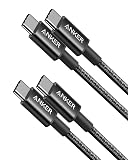
    Anker USB C to USB C Cable, 60W Fast Charging Cable (2-Pack, 3.3 ft, Black) 3.3FT*2 Black 2
    • Durable Design: Reinforced nylon exterior and a robust core ensure this cable withstands up to 5,000 bends, outlasting other brands
    • Fast Charging: Supports Power Delivery for up to 60W high-speed charging when paired with a USB-C charger
    • Versatile Compatibility: Works with virtually all USB-C devices, including phones, tablets, and laptops
    • High-Speed Data Transfer: Transfer files quickly with 480Mbps data transfer speeds
    • Included Accessories: Comes with a hook-and-loop cable tie for easy organization and a welcome guide for hassle-free setup

    Somewhere in your house is a drawer.

    You know the drawer.

    USB-A.

    USB-C.

    Micro USB.

    An old iPhone cable.

    A cable from a digital camera you haven’t owned since 2014.

    Something that might have charged a Nintendo DS.

    And somehow, despite owning 47 cables, nobody can find the one they need.

    The Anker USB-C to USB-C 2-Pack gives you a couple of dedicated USB-C cables for the increasingly large pile of devices using that connection.

    Check out the Anker USB-C Cable 2-Pack →

    Phones.

    Tablets.

    Power banks.

    Headphones.

    Portable electronics.

    More devices are moving toward USB-C, so having a couple of reliable cables in permanent locations can eliminate a surprising amount of cable hunting.

    Dad Approved move:

    Don’t keep moving the same cable around.

    Put one where you charge most often.

    Put another where you routinely need one.

    Then leave them there.

    This is apparently much harder than it sounds.

    See the Anker USB-C Cable 2-Pack →


    🏠 The Best Smart Home Isn’t Necessarily the Smartest One

    Here’s where I think people get smart-home technology wrong.

    The goal shouldn’t be:

    How much of my house can I connect to the internet?

    The goal should be:

    What little annoyances can technology eliminate?

    That’s a completely different question.

    A smart plug that automatically turns on a lamp every evening?

    Useful.

    A doorbell that lets you see who’s outside?

    Useful.

    A camera that lets you check another room?

    Useful.

    A charging station that stops cables from breeding across the countertop?

    Useful.

    A Wi-Fi-enabled toaster that sends you a push notification because your bread is ready?

    We’re getting dangerously close to needing an intervention.


    Start With the Problem, Not the Gadget

    Before buying smart-home gear, ask yourself one question:

    What problem am I solving?

    If you can’t answer that, you probably don’t need it.

    If the answer is:

    “I constantly forget that light.”

    Get the smart plug.

    “I want to know who’s at the door.”

    Get the doorbell.

    “I want to check the house when I’m not there.”

    Look at the cameras.

    “Everyone keeps stealing my charging cable.”

    Okay.

    Technology may not be able to save you.

    But buying a two-pack gives you a fighting chance.


    The Bottom Line

    You don’t need to convert your house into a giant computer.

    You don’t need every appliance talking to every other appliance.

    And you definitely don’t need to replace perfectly good stuff just because somebody released a Wi-Fi version.

    The best technology tends to disappear into everyday life.

    It saves you a trip across the house.

    It lets you check something remotely.

    It automates something repetitive.

    It makes something you already do a little easier.

    That’s the smart-home setup worth building.

    Not the one with the most gadgets.

    The one where the gadgets actually earn their outlet.

  • Ring Battery Doorbell: A Simpler Way to Keep an Eye on the Front Door

    Ring Battery Doorbell: A Simpler Way to Keep an Eye on the Front Door

    #ad — As an Amazon Associate I earn from qualifying purchases.

    There’s something about a doorbell camera that changes the way you answer the door.

    Instead of wondering who’s standing outside, you can check your phone.

    Instead of opening the door to discover someone selling something you absolutely did not ask to buy, you can find out first.

    And when a package arrives while you’re away, you can at least know what happened to it.

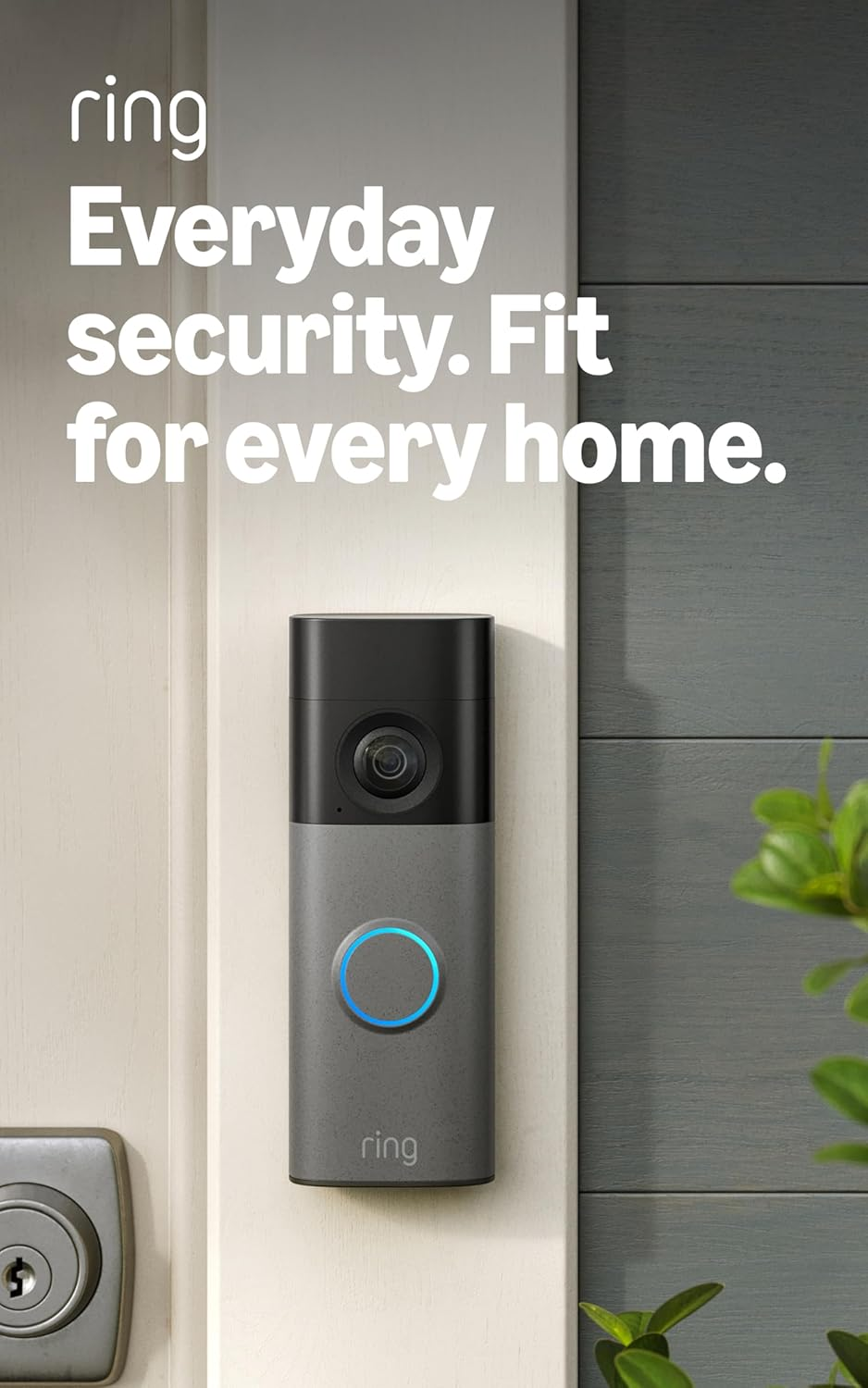
    The newest Ring Battery Doorbell takes that idea and removes one of the biggest installation headaches: running a power wire.

    It’s battery-powered, has built-in rechargeable power, and is designed for relatively straightforward installation. The current model offers Retinal 2K video, a 140-degree field of view, up to 6x Enhanced Zoom, motion alerts, Live View and two-way talk.

    No Existing Doorbell Wiring? That’s Not Necessarily a Problem

    This is probably the biggest attraction.

    Because the doorbell uses a built-in rechargeable battery, you don’t need an existing wired doorbell circuit just to get started.

    Ring describes the installation as simple, and the battery can be removed using the included tool and recharged through USB-C.

    That makes it interesting for:

    • Homes without an existing wired doorbell
    • Apartments or rentals where appropriate installation is allowed
    • Side entrances
    • Garages
    • Other locations where running electrical wiring isn’t convenient

    Of course, always check your lease, local requirements and installation conditions before mounting anything.

    The 2K Video Is the Big Upgrade

    The newest model uses Retinal 2K video, giving you a higher-resolution view of what’s happening around the front door. It also offers up to 6x Enhanced Zoom for getting a closer look at details in the image.

    That can be useful when you’re trying to figure out something simple:

    “Was that my delivery?”

    or:

    “Who just rang the doorbell?”

    Sometimes you don’t need a cinematic masterpiece.

    You just need to see what’s happening.

    You Can Actually Talk to Whoever Is There

    The doorbell includes Live View and two-way talk, so you can communicate with someone at the door through the device.

    That’s handy when:

    • A delivery driver arrives
    • Someone is visiting
    • You’re upstairs
    • You’re outside
    • You aren’t home

    You can tell the delivery driver where to leave something without sprinting to the front door like you’re competing in the Dad Olympics.

    Motion Alerts

    The doorbell can send real-time notifications when motion is detected.

    That’s useful because you don’t have to be staring at the front door all day.

    Your phone can let you know something is happening, and you can decide whether it’s worth checking.

    What About Nighttime?

    Here’s an important distinction.

    This particular Battery Doorbell model does not have the same night-vision feature listed for the more expensive Battery Doorbell Plus. The standard Battery Doorbell does have low-light capabilities, but if nighttime visibility is particularly important to you, compare the models carefully before buying.

    That’s one reason I wouldn’t automatically tell everyone to buy the cheapest Ring doorbell.

    Figure out what you actually need first.

    There’s a Subscription Catch

    Here’s the part worth knowing before you buy.

    The hardware works, but some of Ring’s more advanced features, including recording history and certain intelligent alerts, require a compatible Ring Protect subscription, sold separately.

    So don’t just look at the doorbell price.

    Look at the entire setup you want:

    Doorbell + installation + optional subscription

    That gives you a much more realistic idea of what you’re buying.

    It Works With Alexa and Other Ring Devices

    The doorbell works with Amazon Alexa, and compatible Ring devices can be linked together for additional security functionality. Some of those features require a subscription.

    If you’re already using Ring products around the house, that makes the ecosystem more attractive.

    If you’re starting from scratch, it’s worth comparing Ring with other video-doorbell systems before deciding.

    Who Is This Best For?

    I’d particularly look at this model if you want:

    ✔ Battery-powered installation

    ✔ 2K video

    ✔ A wide 140-degree field of view

    ✔ Two-way communication

    ✔ Motion notifications

    ✔ Smartphone access

    ✔ A relatively straightforward DIY installation

    And I’d think twice if:

    ✘ You absolutely need advanced nighttime visibility

    ✘ You don’t want a subscription for cloud-based features

    ✘ You already have a wired system you’re happy with

    Dad Approved Bottom Line

    A doorbell camera isn’t going to turn your house into Fort Knox.

    That’s not what it’s supposed to do.

    What it can do is give you more information about what’s happening at your front door.

    The newest Ring Battery Doorbell combines a rechargeable battery with 2K video, wide-angle coverage, zoom, motion alerts and two-way talk without requiring you to run a new power line to the door.

    For a lot of families, that’s a pretty useful combination.

    And there’s something satisfying about being able to check who’s at the door without getting off the couch.

    That’s not laziness.

    That’s strategic dad positioning.

    Check the current Ring Battery Doorbell on Amazon →

    Prices, availability, features and subscription requirements can change, so check the current Amazon listing before purchasing.

  • Blink Outdoor 4: Two Cameras, No Extension Cord Required

    As an Amazon Associate I earn from qualifying purchases.

    There are two things dads generally don’t want to do:

    1. Run electrical wire through half the house.
    2. Explain to their wife why they ran electrical wire through half the house.

    That’s where the Blink Outdoor 4 gets interesting.

    This particular package comes with two Outdoor 4 cameras and the Sync Module Core, giving you a wireless way to keep an eye on areas around your home without running power cables to each camera.

    What’s in the Box?

    This particular package includes:

    • 2 Blink Outdoor 4 cameras
    • Sync Module Core
    • AA lithium batteries for the cameras
    • Mounting hardware
    • Camera accessories

    The cameras are battery powered, so you can put them where you actually need them instead of wherever an outlet happens to be feeling cooperative.

    What Can They Do?

    The Outdoor 4 gives you:

    • 1080p HD video
    • Infrared night vision
    • Two-way audio
    • Enhanced motion detection
    • Live view through the Blink app
    • Wireless, battery-powered operation

    So you can check what’s happening outside without having to walk to the window, pull the blinds three inches and perform the traditional dad surveillance maneuver.

    You know the one.

    Where Would I Put Two?

    That’s really where this package starts making sense.

    A two-camera setup could cover:

    📷 Camera #1: Front Door

    Keep an eye on packages, visitors and whatever that noise was outside.

    📷 Camera #2: Backyard / Driveway

    Because apparently raccoons have decided your trash cans are an all-you-can-eat buffet.

    Other possibilities include:

    • Garage
    • Side entrance
    • Patio
    • Shed
    • Pool area
    • Boat or trailer area

    The right locations depend on your property and Wi-Fi coverage.

    Battery Life

    Blink advertises up to two years of battery life under its stated conditions.

    That’s a big selling point if you’re putting cameras somewhere that doesn’t have convenient power.

    Of course, “up to two years” is not the same thing as a guarantee that you’ll forget the batteries exist until your grandchildren are in college. Actual battery life depends on things such as activity, settings and usage.

    Still, not having to run power to each camera is a pretty nice perk.

    What About the Sync Module?

    Here’s something worth knowing before you buy.

    The cameras aren’t completely independent little islands.

    This package includes the Sync Module Core, which connects the cameras as part of the Blink system. You’ll still need Wi-Fi and an internet connection for the system’s connected features.

    So:

    Wireless power? Yes.

    No cables running to each camera? Yes.

    Completely independent of your home network? Nope.

    That distinction is worth knowing before you start drilling mounting holes.

    Can You Add More Cameras?

    Yes. The Blink ecosystem can support additional cameras, so you’re not necessarily locked into a two-camera setup.

    That means you could start with:

    Front + backyard

    and later add:

    Garage + driveway + side yard

    At which point you may officially become the dad who knows exactly what every suspicious noise within a 100-foot radius sounds like.

    One Thing to Know

    The Outdoor 4 is designed around motion-triggered recording and live viewing, rather than being a traditional 24/7 continuously recording security camera.

    That’s an important distinction.

    If your expectation is:

    “I want to rewind six hours of continuous footage because I think a squirrel walked past the driveway at 2:17 PM.”

    this isn’t necessarily the type of system you’re looking for.

    If your goal is:

    “Tell me when something is happening outside and let me see what’s going on.”

    That’s much more in its wheelhouse.

    Is the Two-Camera Package Worth Considering?

    If you want to start with basic outdoor coverage without running power cables everywhere, yes, this is a sensible package to consider.

    You’re getting two cameras, the Sync Module Core and the hardware needed to get started.

    I’d especially look at it if you want coverage for two specific areas rather than trying to turn your house into Fort Knox on day one.

    Dad Approved Bottom Line

    👍 Things we like

    • Two cameras in the package
    • Wireless battery-powered installation
    • 1080p HD video
    • Night vision
    • Two-way audio
    • Motion detection
    • Long advertised battery life
    • Expandable system

    🤔 Things to consider

    • Requires Wi-Fi/internet for connected features
    • Battery life varies with use
    • It’s not intended as a traditional 24/7 continuous recording system
    • Blink has multiple Outdoor models, so make sure you’re buying the Outdoor 4

    Verdict

    Worth a look if you want simple outdoor coverage without running power to every camera.

    It’s not a replacement for a professional security system, but for keeping an eye on the front door, driveway, backyard or other areas around the house, the Outdoor 4 gives you a fairly straightforward starting point.

    And let’s be honest: sometimes you don’t need a $3,000 security system.

    Sometimes you just need to know which kid left the garage door open.

    Check the current price, availability and configurations on Amazon →

    Check it out on Amazon